
elevates in-person fundraising.
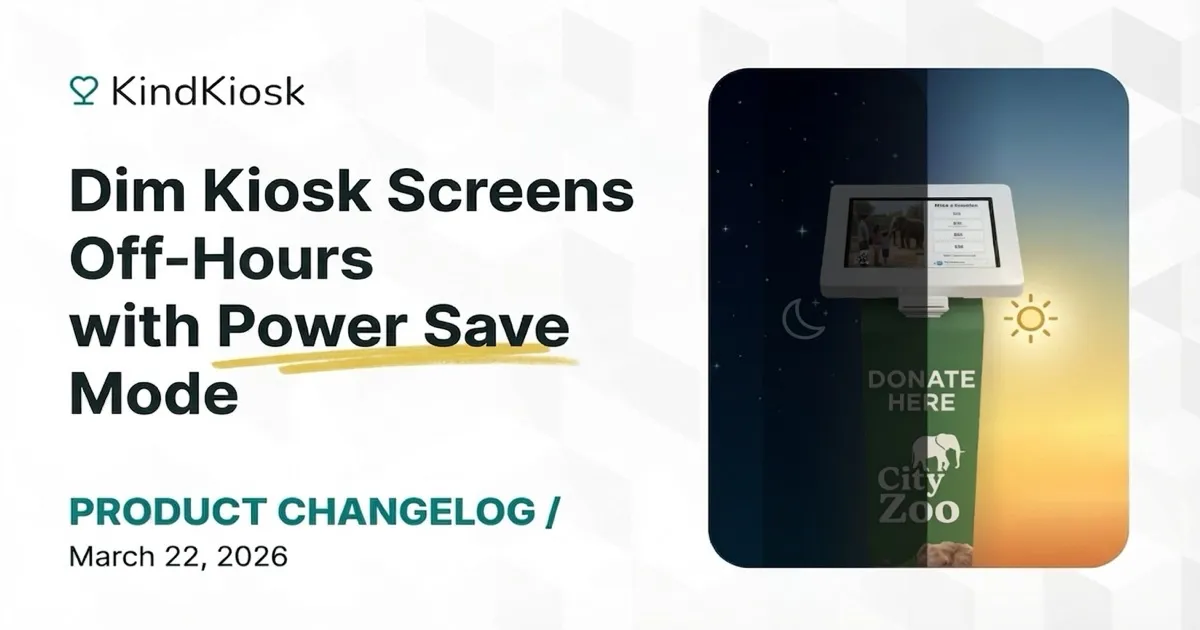
You can now set a schedule to automatically dim your kiosk screens when your location is closed. The screen dims to its lowest brightness with a dark overlay, helping save energy and extend screen life.
Our aquarium, zoo, and performing arts customers should appreciate this change.
From the Kiosk settings page on your dashboard, enable Power Save Mode and set a schedule. You can set the same hours every day, or customize the schedule for each day of the week.
When the scheduled time arrives, the kiosk screen fades to black. Need to stop Power Save Mode? Just tap the screen. The kiosk will wake up immediately. After 5 minutes of inactivity, it dims again.
As soon as the end time is reached, your kiosk will go back to full brightness.
Many organizations have different hours on different days. You can set unique start and end times for each day of the week, or disable power save entirely on specific days. Perfect for locations that are open late on weekends or closed on certain days.
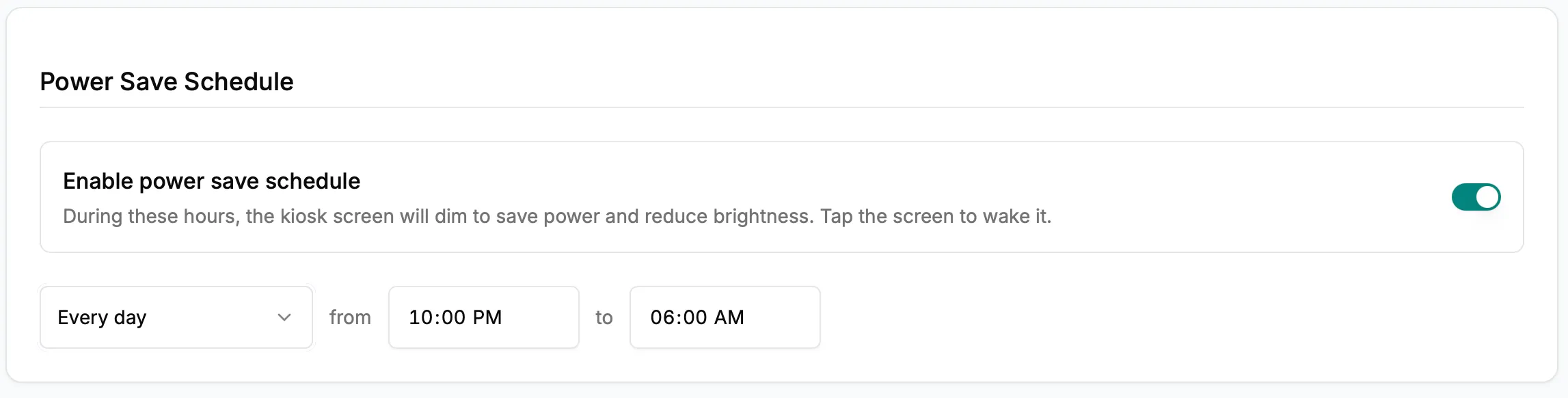
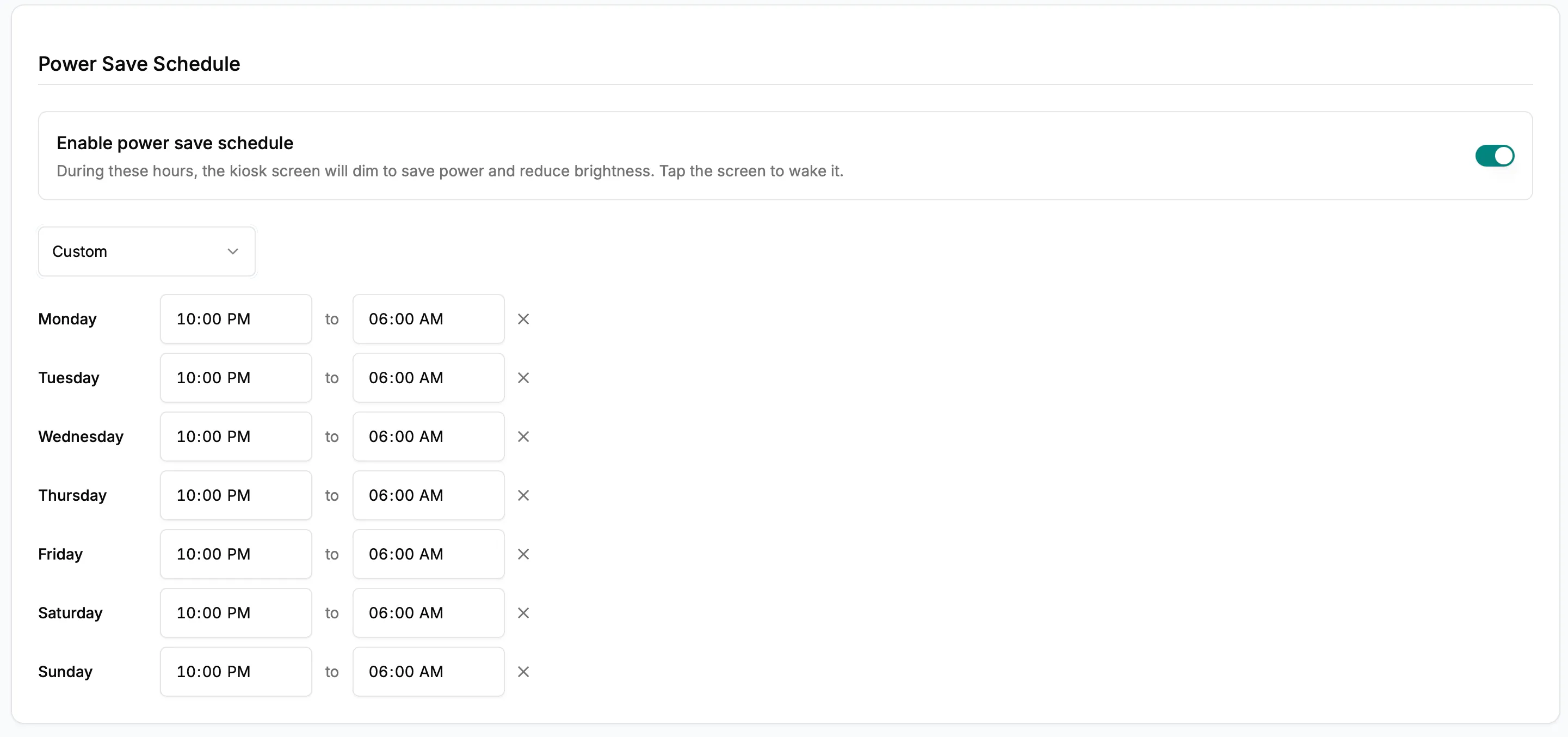
When you update the power save schedule from your dashboard, the kiosk picks up the change right away. No need to restart the device or wait for a sync.
Subscribe to get notified when we ship new features and improvements.
Max of two emails per month.
You're subscribed!